Alpha testing release
Anvil 0.0.2 is early software. Please read this first.
This is an alpha testing release. It is early software, and it may contain bugs.
Your memories should carry forward when you update Anvil, but during the alpha we can't guarantee it. Keep backups of anything that matters, and please don't store anything you can't afford to lose.
We want to hear what you find. If something breaks, confuses you, or just feels wrong, tell us. Every report helps.
The getting started guide.
Every change Anvil makes to Claude Code, Codex and your other assistants: which files, what goes in them, what happens automatically, what you set by hand (including after each update), how we run it ourselves, and how to undo all of it.
Download Anvil.
Alpha 0.0.2: works offline from the first start, with fixes from the first beta reports. This is the Free tier: the whole memory brain, private and encrypted, on your own machine.
Pick your system.
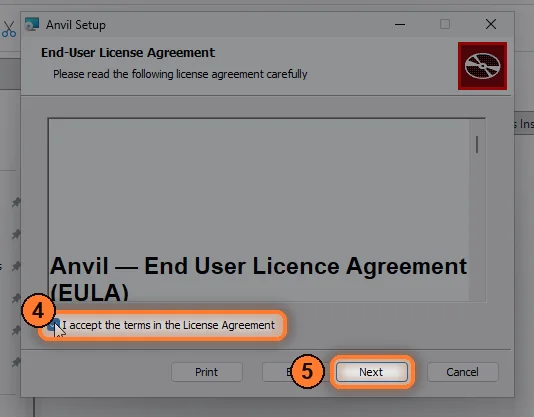
Installing. Open the .msi you downloaded and follow the installer. Anvil goes into C:\Program Files\Anvil, with Start menu and desktop shortcuts, and the anvil command works in any new terminal. If your PC lacks Microsoft WebView2, the installer downloads it.
Windows will ask before it runs. Anvil isn't code-signed yet, so Windows shows a "Windows protected your PC" screen. Choose More info, then Run anyway.
If Microsoft Defender flags it. Programs that aren't signed are sometimes mistaken for threats. Every Anvil release passes a Defender scan before we publish it. If Defender removes anvil.exe, first check your download against SHA256SUMS. If it matches, restore it: open Windows Security, go to Protection history, choose the Anvil entry, then Allow on device.
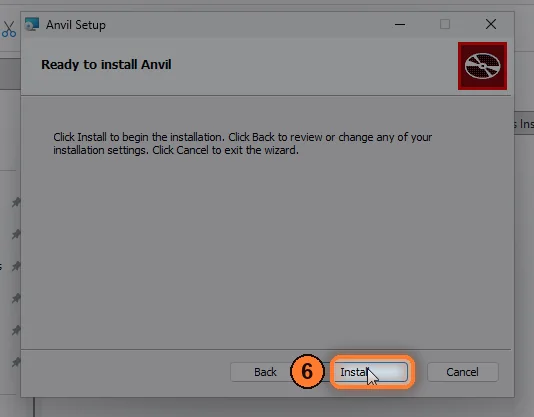
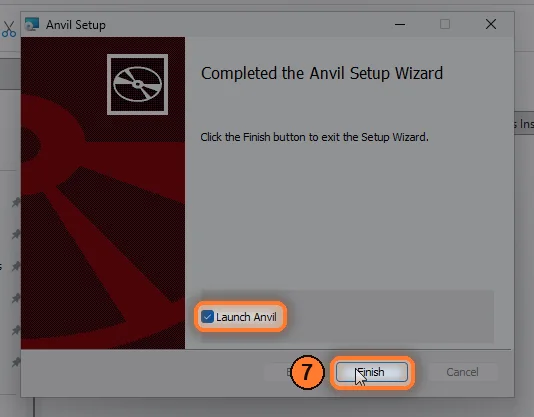
Installing on Windows, step by step
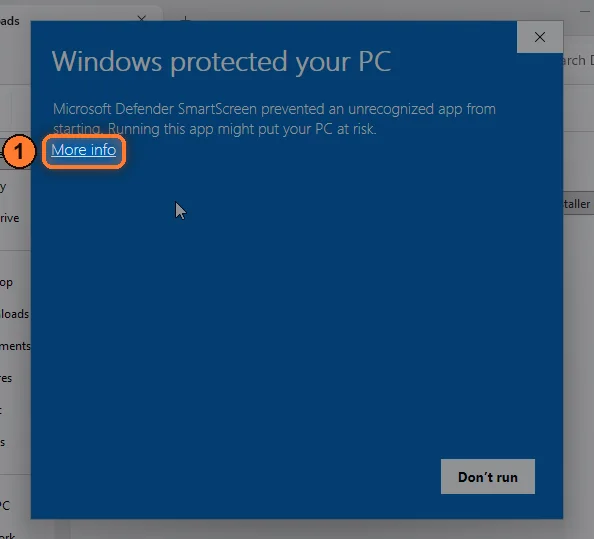
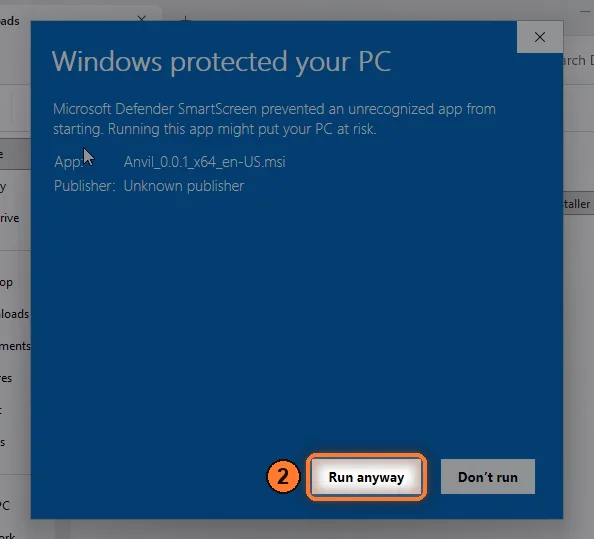
Anvil_0.0.2_x64_en-US.msi, then click Run anyway (2).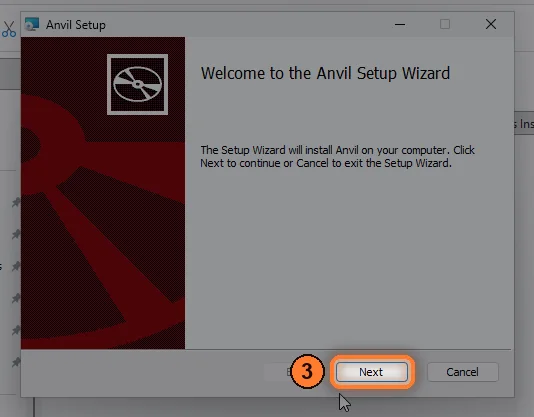
macOS
Apple silicon only (M1 or newer). Intel Macs are not supported.
With Homebrew (recommended): the app
brew install --cask vitkilabs/anvil/anvil-appWith Homebrew: command line only
brew install vitkilabs/anvil/anvilOr download the disk image
Use Homebrew. Anvil isn't notarized by Apple yet. Installed with Homebrew, it opens straight away, with no security prompts, and the anvil command is ready in Terminal. No Homebrew yet? Get it from brew.sh.
Using the disk image instead? macOS blocks it twice the first time: once when you open the .dmg, and once when you first open the app. Each time, click Done, then open System Settings › Privacy & Security, scroll down to Security, click Open Anyway and confirm with your password or Touch ID. The steps are pictured below. With the disk image, the anvil command stays inside the app; the getting started guide shows how to put it on your PATH.
One Mac thing to know. Nothing starts Anvil at login yet, so open it after you restart your Mac.
Only if you use the disk image: getting past macOS's checks
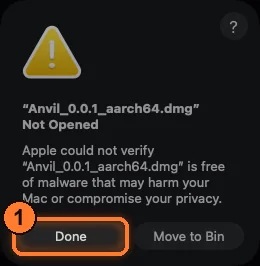
.dmg: macOS won't open it yet. Click Done (1), then Open Anyway in Privacy & Security, and open the .dmg again.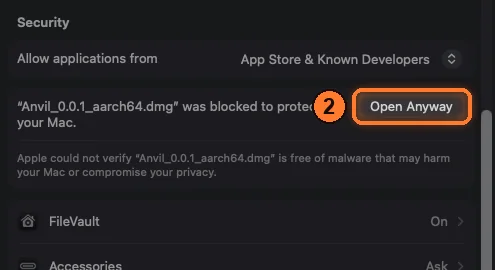
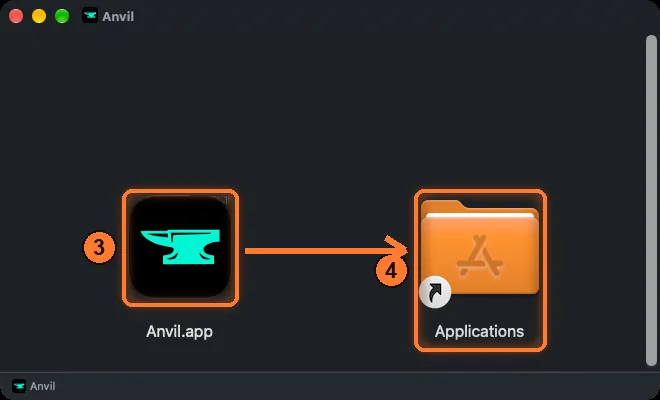
.dmg again and drag Anvil (3) onto Applications (4).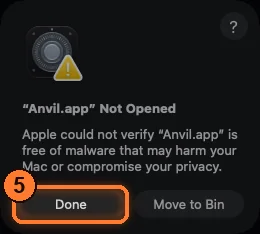
Linux
x86_64 (64-bit Intel or AMD)
Installing. From the folder you downloaded to:
.deb: sudo apt install ./Anvil_0.0.2_amd64.deb
.rpm: sudo dnf install ./Anvil-0.0.2-1.x86_64.rpm
AppImage: chmod +x Anvil_0.0.2_amd64.AppImage, then open it.
Then open Anvil from your app menu. With the .deb or .rpm, the anvil command is on your PATH.
To connect an assistant, use the .deb or .rpm. The AppImage is fine for trying Anvil out, but an assistant connected from it loses the connection once the AppImage closes.
Every file in this release, including SHA256SUMS, is also on the release page on GitHub.
Make sure it's the real file.
SHA256SUMS lists a fingerprint for every file in the release. Work out the fingerprint of the file you downloaded and compare it with that file's line in the list. If they don't match, don't run it: download it again.
shasum -a 256 Anvil_0.0.2_aarch64.dmgGet-FileHash .\Anvil_0.0.2_x64_en-US.msi -Algorithm SHA256Windows prints the fingerprint in capital letters. That's fine: only the letters and digits have to match.
sha256sum Anvil_0.0.2_amd64.debUse the name of the file you downloaded.
After you install.
Claude Code, Claude Desktop, ChatGPT or Codex, GitHub Copilot in VS Code, or a local app such as LM Studio, Cline or opencode. Anvil works underneath it.
Your Claude or ChatGPT sign-in, your own API key, or a model you run on your own machine.
- Open Anvil. The first time, it walks you through the next three steps.
- Create your vault. Pick a passphrase and save the recovery PDF somewhere safe, outside the Anvil folder. Your memories and keys are encrypted with it.
- Connect your assistant. Anvil lists the assistants it found. Click Connect, then restart your assistant: start a new Claude Code session, or quit and reopen the app.
- Pick how Anvil thinks. Use your Claude or ChatGPT sign-in, add an API key, or point it at a local model.
- Check it. Run
anvil doctorin a terminal. In Claude Code,/mcpshould list anvil as connected.
Found a bug? Tell us.
That's what this alpha is for. A short note about what you did and what happened is plenty.
Open Settings › System and choose Report a bug.
anvil report-bug "what happened"Reports go privately to the Vitkilabs team. A report holds what you write and basic details such as your Anvil version and operating system. It never includes your memories, prompts or code. Our privacy policy explains how we handle data.
Rather write to us? [email protected]